Setup
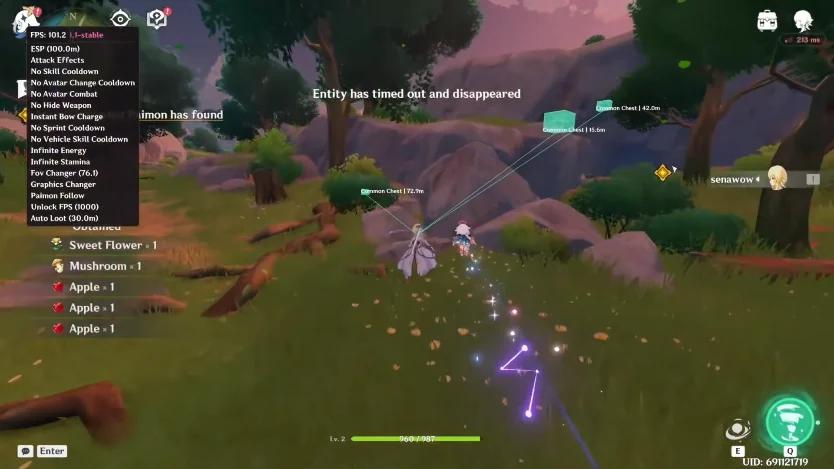
How do I set up Cloud DMA? The menu came up half grey on first launch and I assumed I needed extra hardware.
Windows 11, AWS option mentioned in the mail. I followed some of Setup but I am stuck on BIOS vs Windows toggles.

Setup
How do I set up Cloud DMA? The menu came up half grey on first launch and I assumed I needed extra hardware.
Windows 11, AWS option mentioned in the mail. I followed some of Setup but I am stuck on BIOS vs Windows toggles.
BIOS first: HVCI, TPM, Secure Boot. Then Windows Core Isolation. Then the launch order on Setup. Grey menu is almost always a skipped BIOS flag.
I enabled Core Isolation in Windows. Did not open BIOS. That tracks with the grey toggles.
AWS option is in the delivery mail, not extra hardware. Do not buy a second PC for this.
Enable HVCI, TPM, and Secure Boot in BIOS, reboot, then follow the launch order on Setup. Cloud DMA with the AWS option runs on one Windows 10/11 PC. No physical DMA card.
Run the loader as admin, paste the license, then launch Genshin Impact. Reverse that order and the menu stays half dead.
BIOS was the miss. Secure Boot on, reboot, menu is live. Doing a Mondstadt test now.
If it greys out again after a Windows update, re-check those three BIOS flags. Windows loves to “help”.
If BIOS is correct and it still greys, send the order ID to Support. Do not rebuy.